 |
Display Driver UninstallerThe most effective way to remove NVIDIA, AMD & Intel drivers |
|||||||||||||||||
|
How it WorksFollow these steps to correctly use Display Driver Uninstaller (DDU) for a clean driver installation. Step 1: Launch DDUOpen the application. It is highly recommended to run DDU in Safe Mode for the best results. You will see the main interface with system information. 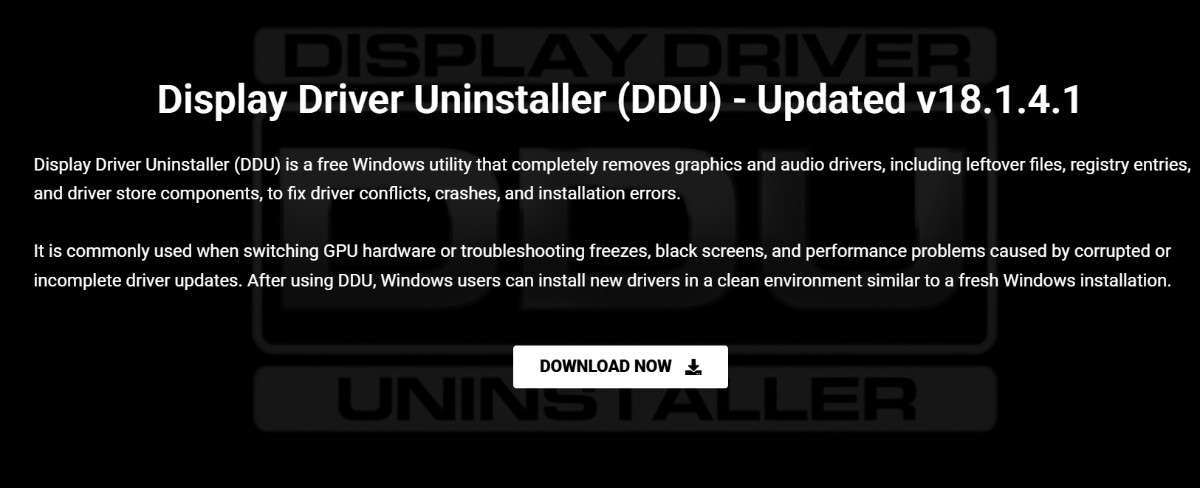
Step 2: Select Device TypeOn the right side, use the dropdown menu to select the device type you want to uninstall (e.g., GPU or Audio). 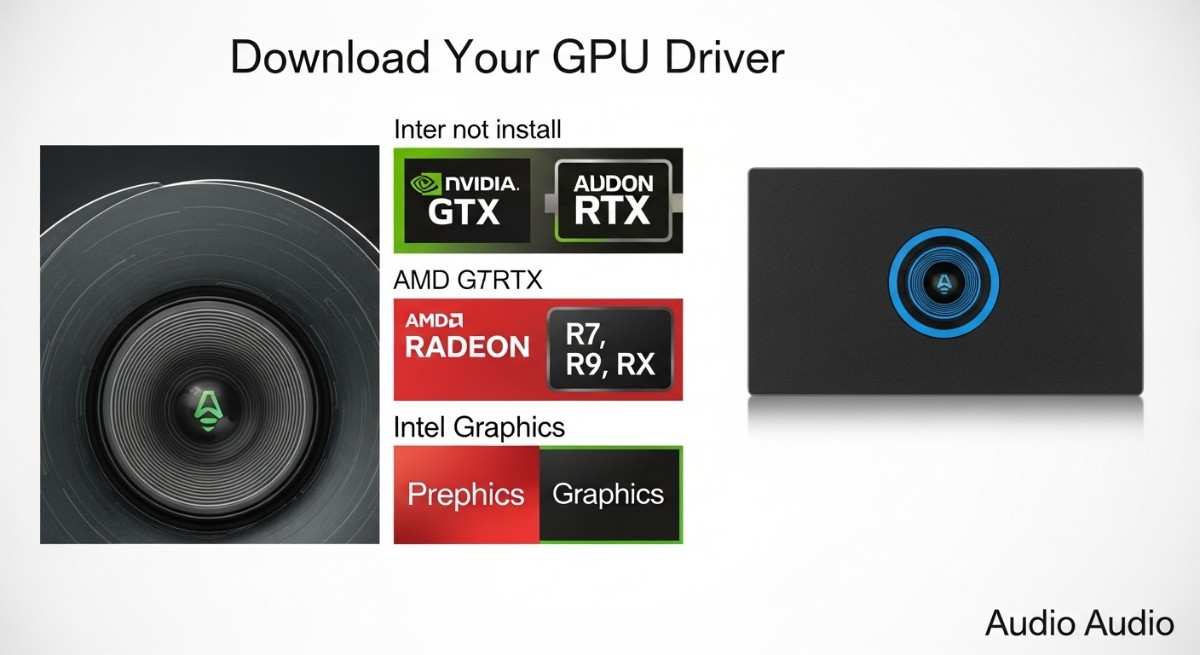
Step 3: Select Device BrandSelect the specific device vendor (NVIDIA, AMD, or Intel). DDU will automatically detect the installed driver. 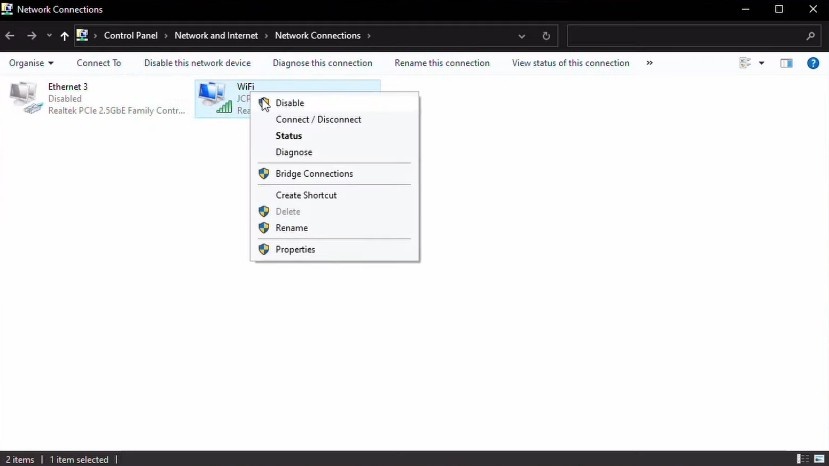
Step 4: Choose Cleaning OptionSelect your preferred cleaning method. "Clean and restart" is the most common and recommended option for fixing driver issues. 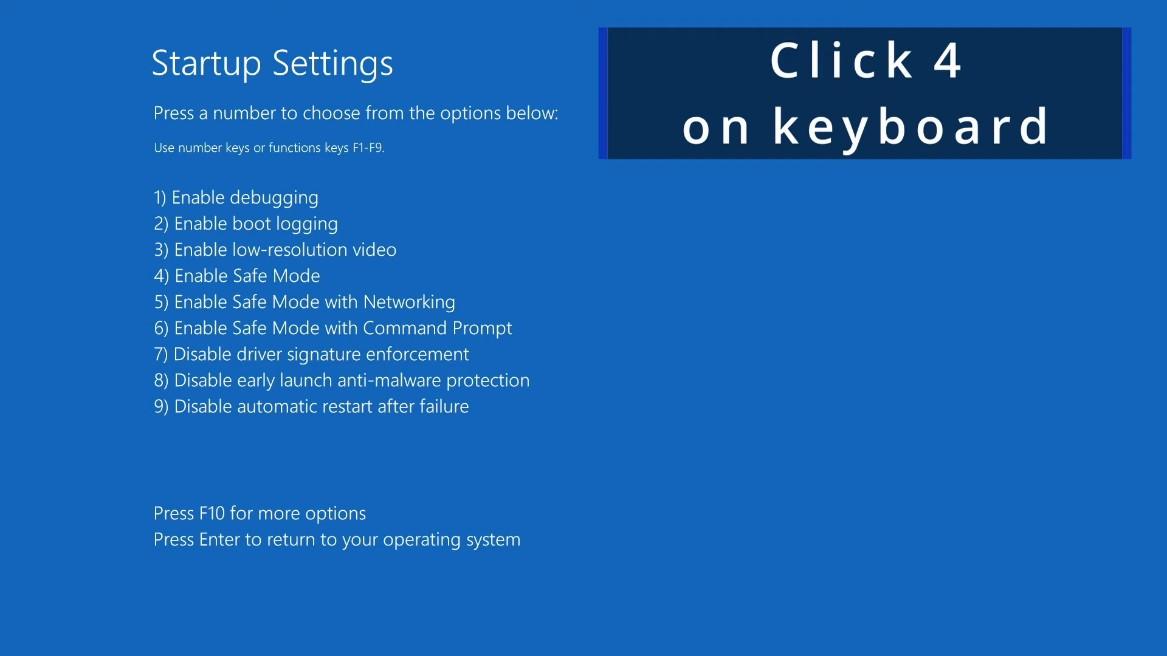
Step 5: Cleaning ProcessDDU will begin removing all traces of the driver, including registry keys, files, and folders. Wait for the process to complete. 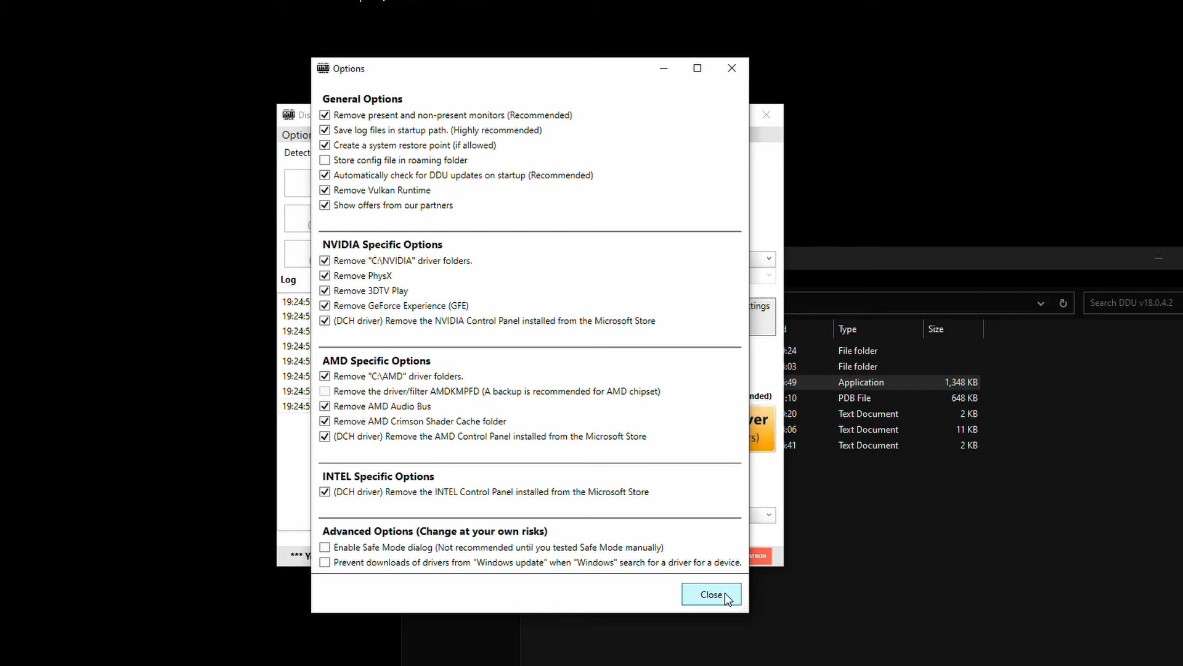
Step 6: CompletionOnce the cleaning is finished, DDU will notify you. If you selected "Clean and restart", your computer will automatically reboot. 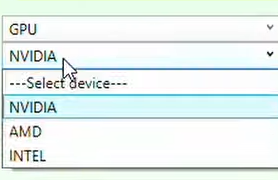
Step 7: Install New DriversAfter rebooting, your system will be clean. You can now proceed to install the latest drivers for your graphics card without conflicts. 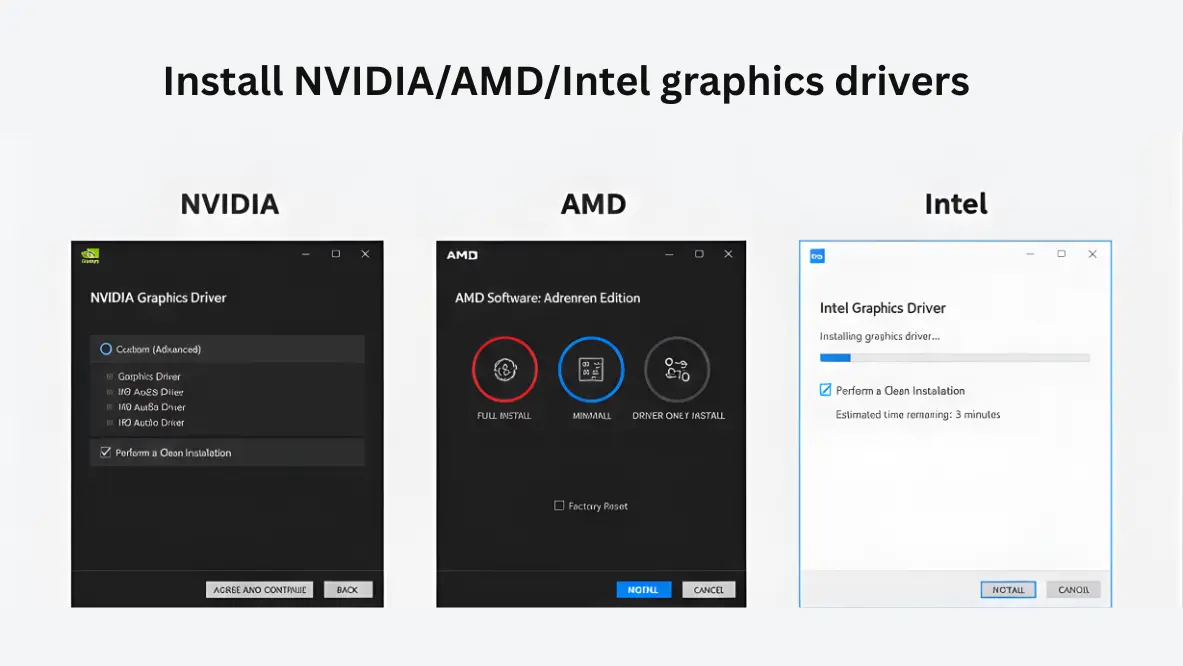
For more detailed assistance, visit our Guides page or the Support Forum. |
|||||||||||||||||
| Display Driver Uninstaller (DDU) · displaydriveruninstaller.org · Complete & Clean Graphics Driver Removal. All rights
reserved. © 2026 DisplayDriverUninstaller.org. |